Search
Ctrl+K
Shuffle Apps


On this page
Documentation for apps. If you'd like to make an app check out this guide
Introduction
Apps are the heavy lifters of workflows within Shuffle. They give access to a library of functions, and are created using OpenAPI or pure Python. Shuffle gives you access to pre-defined integrations located here.
A subset of available apps can be found at https://shuffler.io/apps.
How they work
Apps are the primary building blocks in workflows. Apps can be auto-generated from OpenAPI specifications or using Shuffle's app sdk. To enforce stability and usability, we use a versioning system to prevent sudden updates to apps.
Apps can contain multiple actions, which can take multiple variables. They are made to be able to interact with each other by using each-others' data. Apps have the ability to be in multiple environments with different data (e.g. different credentials), before passing them on.
PS: In a future iteration, focus will move to an optional hybrid execution model (e.g. use cloud resources).
Actions
An app can perform more than one task based on predefined actions. These actions are defined by the developer, and are reusable and modifiable by the user of the app. An action should (for now) be a one-to-one representation of the function to run, and usually has arguments for authentication with the target application. Actions can contain multiple arguments.
You can view an app's actions by selecting the app and clicking the Edit button.

Arguments
Arguments are the variables used to perform an action. Arguments with an orange dot next to them are required, with yellow ones being optional. Arguments should have example text to to indicate the expected value. The first arguments of an app are usually related to authentication or the target URL, where we suggest using variables
You can see what parameters and action has by going to /apps, selecting an app and then the action.
Updating apps remotely
PS: This only applies to onprem Going to /apps, there exists a button called "Download from Github" which by default will download apps from the directory https://github.com/frikky/shuffle-apps. You can type in your own repository along with authentication options if applicable.

When the modal opens, there are two buttons:
- Submit - Downloads and builds NEW apps
- Force update - Downloads and builds ALL apps
- Cancel - Closes the modal with no action
Searching for apps
When you set up Shuffle for the first time, it should provide you with >100 existing Apps. These are gathered from shuffle-apps, and will grow over time. Searching for apps is done by going to /apps and writing your search term. In the example below, we searched for "TheHive", which ends in TheHive being shown.

A goal for Shuffle is to make it possible to search outside the apps you currently have. This is an open issue as of 23.05.2020, but will be worked on.
PS: Extended search can be done using the shuffler search-engine
Debugging apps
Apps may fail at times, usually due to bad coding on the creators' side. This means that to get more information, you may be required to troubleshoot and debug to get the logs.
More about this in the app debugging section
Finding apps
If the app you're looking for exists, it will be available on https://shuffler.io or Github. Apps available on the Shuffle website, can further be clicked then exported or tested directly.

Testing apps
After you've found a public or private app on https://shuffler.io, it's possible to test it directly. The view you get access to has the fully featured app included, meaning you won't need to build a workflow to test it.
Options:
- Selecting Actions
- Configuring the action
- Executing the action
- Exploring the result
Downloading apps
Apps can be downloaded or exported from your local instance or https://shuffler.io as long as it's either your private app, or a public one AND is OpenAPI. If you find the Download button in any part of Shuffle, that means the item is exportable.

Importing apps
If you have an OpenAPI specification, either exported from Shuffle or otherwise, it can be imported in the /apps view. You need to be logged in.
Supported filetypes:
- .json
- .yaml
The options for importing are:
- URL: A URL to the file on the internet
- Upload: A local file on your filesystem
- Drag & drop: A local file on your filesystem. Drop it anywhere in the /apps view.
Activating apps
Any public app can be activated, giving you access to a copy of the original app. This app is editable, meaning you can change the configuration of the app in it's entirety in your own Tenant. Activation can be done by first Finding the app, then clicking the "Activate App" in the top right corner. If successful, you should se a notification that it's been activated.
Once an app is activated, you can use it within any Workflow, and find it under /apps. If you can already see the app under the /apps view, it means the app is already enabled. You need to be logged in.
If you want an app activated in your LOCAL environment, see importing apps
Publishing apps
All apps can be published. Published apps are available to EVERYONE using Shuffle, as long as they activate it. This means if you publish an app, it is searchable AND shareable with others. The process for Python and the App Creator are different, as can be seen below.
Python:
- App publishing with python can only be done with Github (for now). Make a pull request for shuffle-apps.
App Creator:
- To publish an app, find an app that you made and own, which is unique, and change "Sharing" to "public" as per the image below.
PS: To remove a public app, contact us
Create custom apps
Importing remote apps
Shuffle can load the apps by using the "Download OpenAPI" button in the /apps view.
Click the "Download OpenAPI" button
Delete app
PS: There is nothing stopping you from deleting an app that is used by a workflow. This is a destructive action, and will make some workflows using the app unusable.
Deleting an app is done by searching for it in /apps.
Required permissions (either or):
- Admin
- App owner / creator
App Creation Introduction
Apps are how work is done in Shuffle. They receive a piece of data, whether JSON or string, performs some action, then returns data back to the user. Apps are mostly community-made, and we aim to support that the best way we can. We allow apps to be made as Swagger/OpenAPI specifications using the app creator OR directly with Python. Each app contains multiple actions, which again can have multiple parameters. More about apps and how they work here.
The premise behind all apps that run in Shuffle, is that they each run in an isolated Docker container, for control, security and scalability. You provide arguments to an app in a Shuffle workflow, and when the workflow is run, your app is reached in the control flow, it will be launched as a new container. Shuffle then sends the apps argument data, and the container destroyed when the app's work is completed.
The underlying design of Apps in Shuffle are based on WALKOFF with minor differences. Most of the documentation below will therefore be close to their approach.
PS: There is no way of creating a Python app easily for the cloud yet. Apps released on Github will eventually be available on https://shuffler.io too.
App development process
This page is about how to develop a new Shuffle app. Want to know how to decide whether to make something new? Checkout the process document and then come back here.
Prerequisites
- App creator: Understanding of HTTP
- Python app: Base understanding of Python 3.x
Why create a custom app?
There are many prebuilt apps in Shuffle, all performing unique actions. There may however be an integration you need that doesn't exist yet. You may either make this yourself or commission this to be made through Shuffle - we're always looking to expand our repository of apps!
Python or the App Creator
A normal question we get asked all the time - should I use the app creator or Python directly? Find out by answering these questions (will be expanded):
1. Is the app a HTTP API? 	Use the App Creator.
2. Does the app need to perform custom actions? Use Python.
How apps are built
When you build an app in Shuffle, it goes through a validation process before building the app. This process ends in a fully working Docker Image containing your apps, pointing to the original app specification to ensure users can use it in the front-end as well.
App Creator in the Shuffle UI
The app creator in Shuffle is built to handle any integration for HTTP apps you may think of. It's based on OpenAPI, and will generate the app using the Python SDK in the background.
Getting started
If you have an OpenAPI config already
- Click the "Generate from OpenAPI", paste the URL or data for your OpenAPI specification, then validate, before submitting. This should show you the app creator. ...
If you want to create an app
- Click the "Create from scratch" button, then use the editor.
UI overview
Creating or editing an app in Shuffle is made to be as simple and fast as possible. These are a few of the main main things in the UI.
- Name: The app's name. Visible to everyone.
- Description: A description for the app.
- Image: An image for the app - should be square.
- Base URL: The BASE URL for the app. Example: https://shuffler.io. Should NOT end with a /
- Authentication: Authentication for the REST API.
	- No authentication: Means no authentication for the user
	- API key: An API-key to be put in a header or query
	- Bearer Auth: Wants a "Bearer token" from the user. Uses the "Authorization" header field.
	- Basic Auth: Uses Basic auth. Requires username and password from a user.
	- Oauth2: Based on Oauth2 and also works with OpenID. Works with all major providers, and handles refresh tokens for you. [More here](#oauth2)
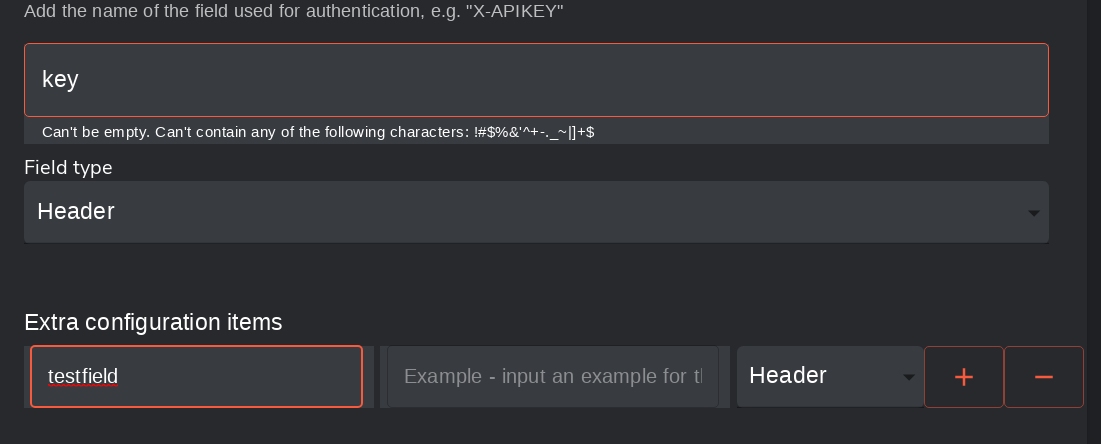
- Extra configuration items: These are extra headers or queries the user HAS to provide when using the app.
- Actions: Where you add the paths for each endpoint.
- Categories: The category the app belongs to. Nothing fitting? Set it to "Other"
- Tags: Add 1-5 tags that seem to fit.
Authentication
There are many ways to authenticate Shuffle apps. The most important thing is to understand how authentication is reflected in a Workflow. Authentication fields become "required" fields, and can be stored in the App Authentication, utilized in a workflow. These are the authentication Options found in the App Creator:
- No Authentication
- API Key
- Bearer Auth
- Basic Auth
- Oauth2
- JWT
- Extra Authentication
Below is an explanation for each of these.
PS: Do not add your API key(s) to the App itself. This is done during authentication
No Authentication
Self-explanatory - no authentication is added, meaning no new required fields.
API Key
API-key allows you to add a Header or a Query (?field=value in URL) to the HTTP request. This will additionally add a URL field to the authentication, so that both the authentication and URL can be encrypted and re-used.
Normally used for keys like: "X-API-KEY" or "?auth="
Additionally, you can add a Prefix. This is NOT your API key itself. Example:
- You want to add a Header key that is "apikey=token "
- Fill in the Key to be "apikey", and choose Field Type "Header".
- To make this convenient, fill in "token " in the Value Prefix field.
- The user now only has to fill in the apikey part, as Shuffle will add the prefix automatically
Bearer Auth
Bearer Auth is a special authentication that is very close to API key. It does what the previous authentication does, but in a very specific way. If Bearer Auth is enabled, the Header that is added will ALWAYS look like this:
Authorization=Bearer <apikey>
This is used widely enough that we decided to add it as it's own authentication type.
Basic Auth
Basic Auth is like a Login. It uses a Username and Password which has to be filled in. This will then get translated into base64 in the following format: base64(username:password), and further added as a Header to the request in the following format:
Authorization=Basic base64(username:password)
Very widely used in older systems.
Oauth2
Oauth2 is a special kind of multi-step authentication, meaning Shuffle will run a request to authorize your user's access before the actual HTTP request runs. There are two main forms of it that are widely used by larger companies: Delegated and Application.
Your Redirect URI: https://shuffler.io/set_authentication
- Delegated Permissions are a way for you to give access to something from your (typically) individual account. This can be an account at work, but is still from an individual's account. This will create a popup where you need to accept these permissions. Requires Client ID + Client Secret + Scope + user login
- Application Permissions require a Client ID + Client Secret + Scope, and are the typical way to use Oauth2 for security. It uses permissions from the platform itself, and usually has more permissions than delegated, but doesn't allow you to delve into the personal access of an individual.
As the creator of the app, you will need to fill in three (3) fields to help Shuffle and the user with Authorization:
- Authorization URL
- Token URL (does refresh as well typically)
- Scopes
All of these should be retrieved from the 3rd party platform itself. The Scopes are options the user can use to Authenticate the app, and we suggest adding as many relevant ones as possible to the list, with the most popular first.
For the most well-known apps, Shuffle may have even added a "One-step signin" for an app. If you want this for your app to make it easier for users, contact us. If this is not in place, the user needs to fill in a Client ID and Client Secret themselves.
Extra Authentication
Additionally, there is a field called "Extra Authentication". This is meant to add extra REQUIRED
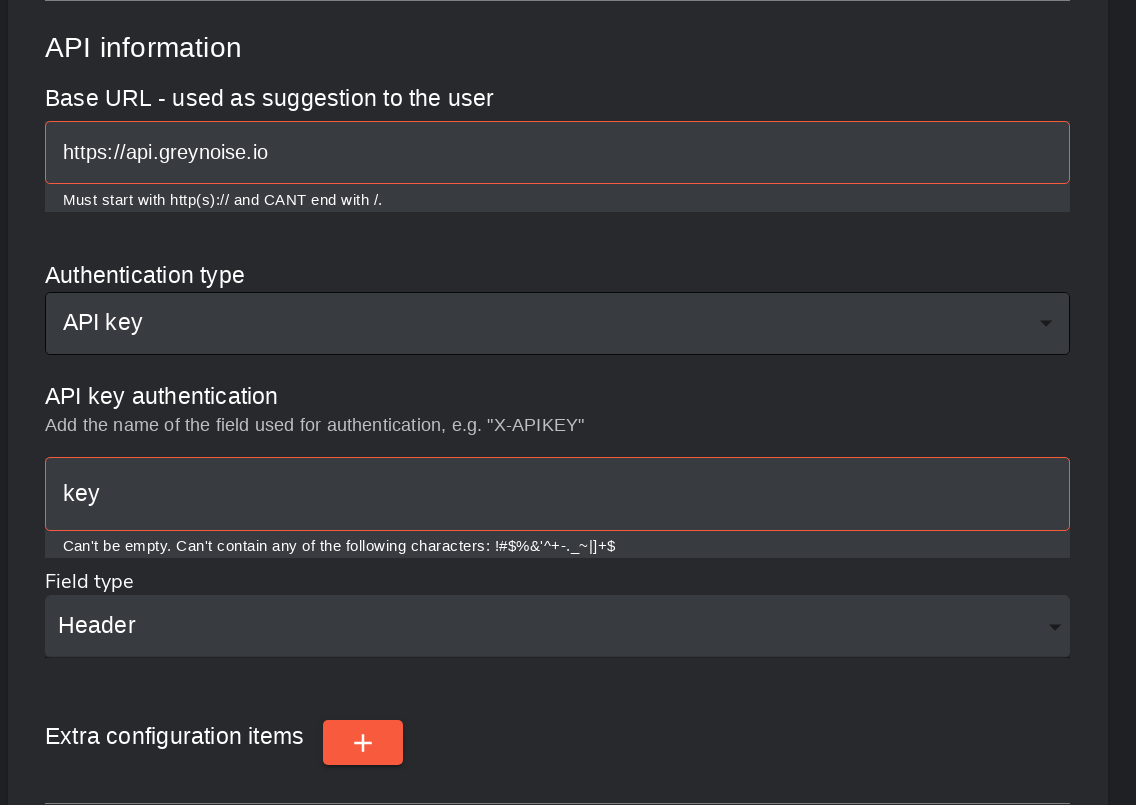
Let's use "GreyNoise" as an example.
GreyNoise uses the URL "https://api.greynoise.io" and authentication type of "API key" with the header "key".
When authenticating this app in a workflow, we will therefore see two fields - "API key" and "URL". As you can see, the URL is auto-filled, but editable, as some services have configurable URL's.
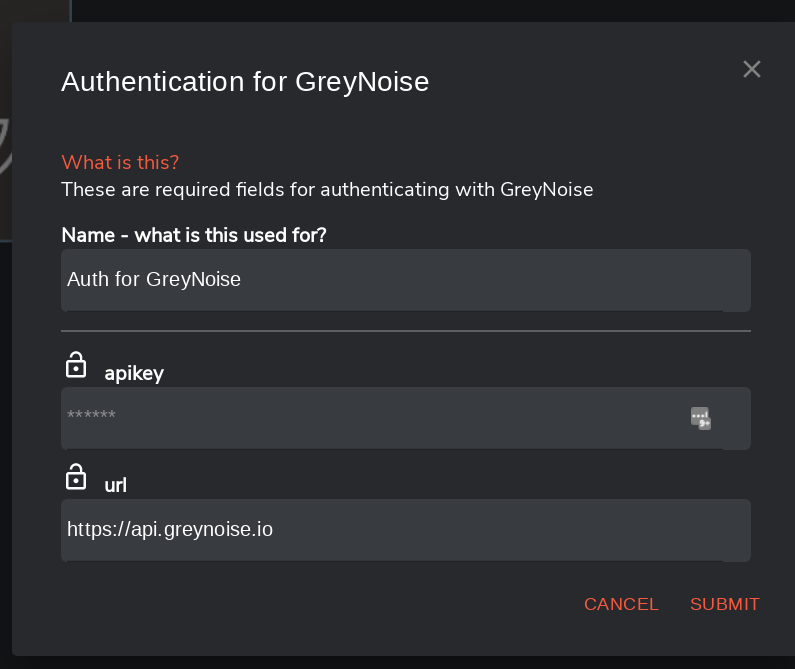
If you want extra variables added to the required authentication, you can add them with the "Extra configuration items". The defined header or query will then be added to every request from the user.
Oauth2
Oauth2 is a special authentication mechanism, most used by major providers like Google and Microsoft, but also others who want good authentication mechanisms. Oauth2 works by primarily defining two URL's (three with refresh token URL) and scopes that can be used. One good example is microsoft graph.
As per the provider's documentation, you need to find their authorization url, token URL and Scopes that are matching what you want to do. Here's what we found from Microsoft. Please keep in mind you do NOT have to add the queries, but just the main URL. For Microsoft the user will have to change the tenant.

After filling these in, you can now safely proceed to a Workflow to use the app. When authenticating the app, you will now have to fill in the following as a user:
- Client ID
- Client Secret
- Scopes

The former two will have to be found by the USER, as the point of this authentication type is to run as the user itself. This has to be documented well, either in the description of the app itself, or in the OpenAPI documentation folder on Github to make it easily available to users. An example for Microsoft app registration can be found here, which includes how to get a client ID and secret.
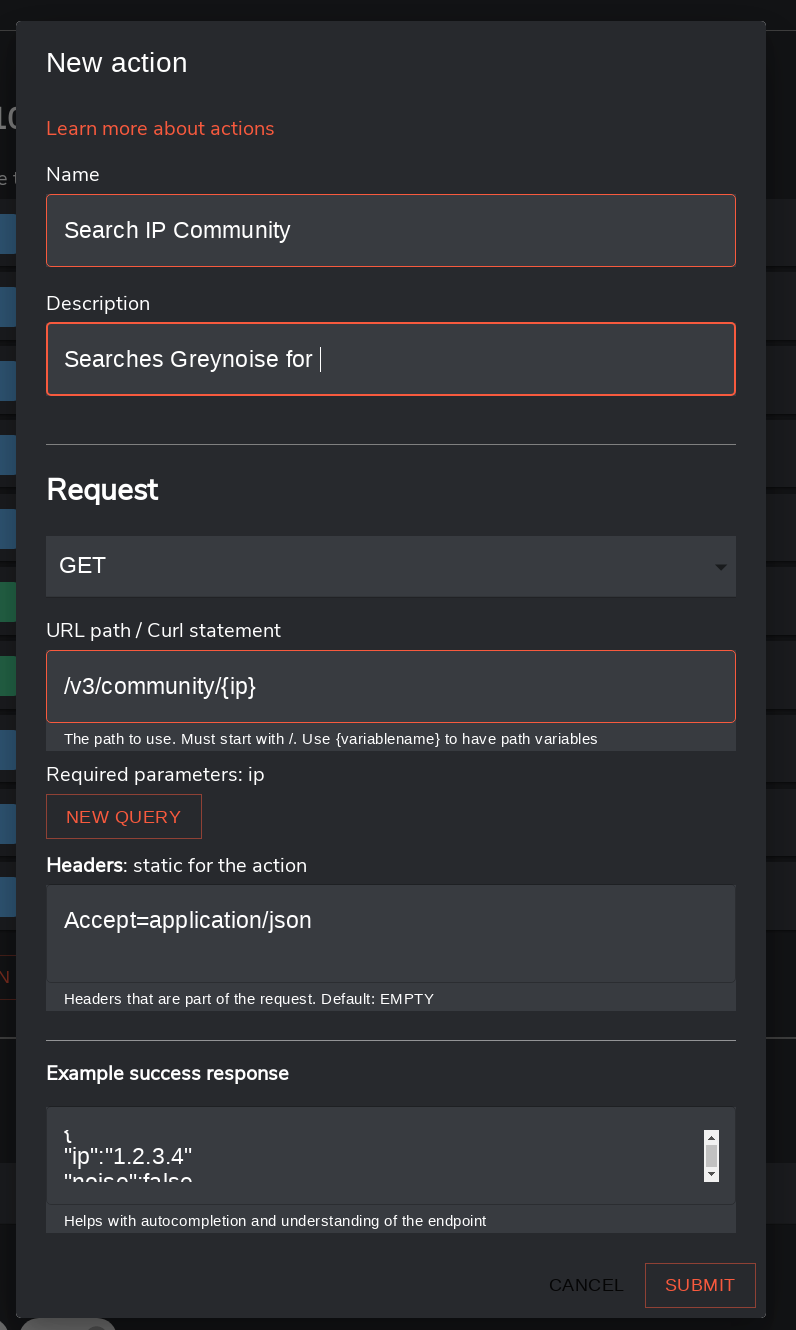
Actions
Actions are the meat of how apps actually work. The action part of the app creator provides the ability to control each individual endpoint very specifically.
Action List information:
- Click an existing action to edit it
- Click "Copy" on the right side to duplicate the action
- Click "Delete" on the right side to delete the action
- If there is an error mark in the action, it won't be built into the app.
Here's what it entails:
- Name: The name you want the user to see. We recommend using a VERB at the start of it, e.g. "Get tickets"
- Description: Further explain what the action is for.
- Request - Dropdown: GET, POST, PUT, PATCH, DELETE, HEAD, CONNECT. Choose what kind of request to make.
- URL path: The path to use with the base URL.
- Must EITHER start with / (path) or be a full URL to have a custom endpoint.
- Use {variable} to make a REQUIRED variable
- TIP: If you have a CURL example, paste it in here and we'll try to autofill everything
- New query button: Add a query to the request. The user can add more queries from the workflow.
- Can be set to be required/not required
- Headers: Add headers for the request.
- Editable by users from the workflow view
- Request body: the body to send
- Only available in POST, PUT, PATCH
- The data you put here is used as a placeholder for the user to edit
- Add ${variable_name} to it to add a variable. This makes it so the user CAN'T see the whole body, JUST the variables
- Example response: An example response from the endpoint. This is important to ensure usability of the action is easy.
- Used by autocompletion methods in Shuffle. Also shown as example to the user
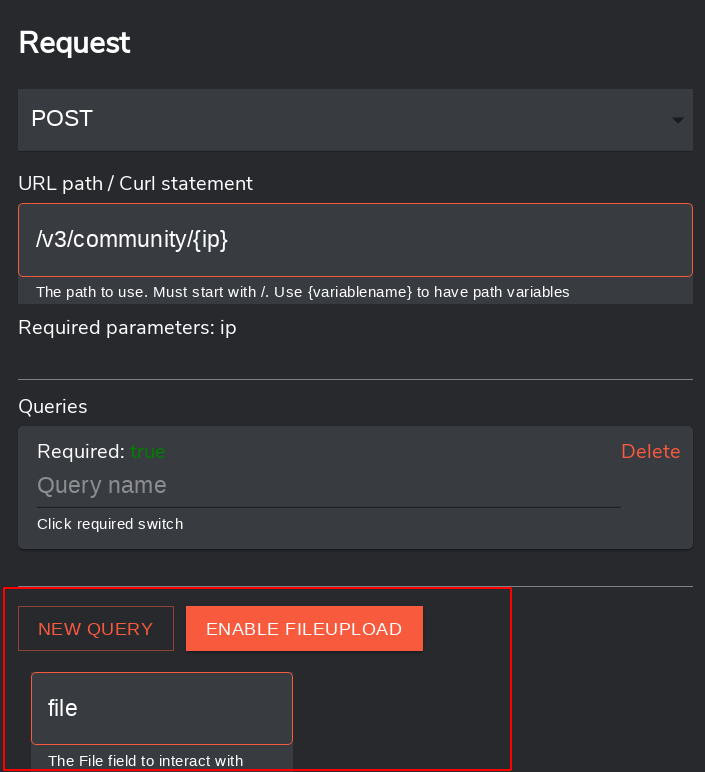
File upload
You can add a file upload parameter to POST requests
Building
Building the app is as straight forward as clicking the "Save" button. This builds the Docker image, and makes the app available in the App and Workflow UI for your tenant to use. We recommend building often to ensure you avoid losing any progress.
PS: The first time you build an app, it may take up to a few minutes. Do NOT update the app while it's building, as your progress will may be lost.
Testing
When building is done, you may want to test the app that you've built. This can currently be done by creating or editing a workflow, before finding the app in the left sidebar as you've always used apps.
PS: We are adding functionality for testing each app directly within the app creator
Editing an app
You may want to change an app later. This can be done by using the /apps UI to find the app, selecting the app, then clicking the "Edit" button.
Python - Building apps manually
Apps using Python can do pretty much anything you can do on a computer. As an example, most utility functions of Shuffle itself are written with as functions of Python in the app "Shuffle-Tools"
Uploading an App
Uploading apps (cloud) or Local Hotloading (onprem) are the way to go. Look into this when you have a prototype app ready.
About
One of the first things you have to do is select an SDK. There are three images currently in Shuffle, Alpine, Kali, and Blackarch. Alpine is your standard slim docker image. Kali allows you access to Kali tooling, and Blackarch is arch, with a kitchen sink approach to tools.
In our example, we are going to develop an app that connects to an API for Office365, pulls some log data and returns it as a JSON data structure. We first think about the 3 primary elements:
- What actions / functions will we create?
- We will have a function to poll the last 10 minutes of audit logs from the Office API.
- We will have a function to poll the last 23 hours of audit logs from the Office API -- testing only purposes.
- What arguments are needed for the app to run?
- We need some arguments for authentication (based on Office365 authentication, we have planType, tenantID, clientID, clientSecret).
- Note that your app may also receive json_data structure arg as part of a prior app action -- you are not limited here.
- What is the output data?
- The app outputs a JSON data structure that contains one audit log entry per JSON object.
With our 3 elements in mind, you can build the script on your own. This example is Python3, but some additional work would allow any app type/language. For now, the expectation is that you would build this in Python3.
Build your Python functions with the expected arguments, and ensure they return the expected output. Once the code works in your environment, you can then integrate it into Shuffle's apps directory to integrate as an app.
Don't forget to document your app in the docs.md file in each version's directory (see below)!
Utility functions
The Python SDK has a couple of utility functions and data you can utilize. These are as follows:
# Basic data
self.url			# The URL to interact with for file and cache control
self.base_url			# The URL to send results to. MAY point to a Worker.
self.action			# The current action being executed
self.authorization		# The authorization key for current execution
self.current_execution_id	# The current execution ID
self.full_execution		# All data for current execution
self.start_time			# The start time for this function

# Utility functions
self.get_file(file_id) 			# Get a file from the backend
self.set_files(files) 				# SETS multiple files, returns ids
self.update_file(file_id, "content") # Updates a file
self.get_file_namespace(namespace) 	# Get ALL files for a namespace
self.get_cache(key)			# Get an item from key:value store 	(v0.8.97)
self.set_cache(key, value)		# SETS cache in the key:value store (v0.8.97)
self.delete_cache(key)			# DELETES a cache key (v1.2.0)
Example file API usage:
filedata = [{"filename": "test.txt", "data": "this is the data in the file"}]
fileret = self.set_files(filedata)

file_id = ""
if len(fileret) > 0:
	file_id = fileret[0]
	filedata = self.get_file(file_id)
	print(filedata)
	# > [{"filename": "test.txt", "data": "this is the data in the file"}]
Example cache API usage:
value = "THIS IS SOME DATA I WANT TO CACHE"
key = "cache_key"

cacheret = self.set_cache(key, value)
if cacheret["success"] == True:
	cache_get_ret = self.get_cache(key)
	print(cache_get_ret)
	# > {
	#		"key": "cache_key",
	#		"value": "THIS IS SOME DATA I WANT TO CACHE"
	#	}
You can learn more about the caching system in general in this Youtube video:
Directory structure
With your Python script built, we must build a directory structure, some metadata files and modify a base app.py file to run your code from Shuffle. In your shuffle server, there is a shuffle-apps directory, typically under the top level dir where you cloned the github repo.
/Shuffle/shuffle-apps/
This directory contains a list of folders, one per app in Shuffle. The minimal directory structure for a Shuffle app is as follows:
Shuffle
+-- shuffle-apps
  +-- app_name (virustotal)
    +-- version_number (1.0.0)
      |-- api.yml           # Has the full app configuration - must match app.py
      |-- Dockerfile        # Contains Shuffle build instructions
      |-- docs.md           # Your documentation of this app in markdown format
      |-- requirements.txt  # Extra packages to be used by the app
      +-- src
        +-- app.py          # The base python file for everything related to your application
        +-- yourcustom_app.py		# More complex apps can have an entire directory structure, imported and called by app.py
  +-- another_app_1
  +-- another_app_2
There is a template app called python-playground that we will clone and edit. First make your app folder. Note: This folder name should not contain spaces.
cd /Shuffle/shuffle-apps
mkdir office365mgmt
cd office365mgmt
cp -R /Shuffle/shuffle-apps/python-playground/* .
The above will make your app folder and copy the template files from python-playground to your app. Upload your python code files to the /src/ directory of your app's folder.
Now that your app's .py script is uploaded under /Shuffle/python-apps/office365mgmt/src, you'll tell Shuffle how to use it.
We will modify 4 files:
- api.yaml
- docs.md
- requirements.txt -- Specify any modules that your app uses, which will be installed via pip
- src/app.py -- The base app that is called by Shuffle, which in turn will call your python script's functions
api.yaml
api.yaml is what provides Shuffle information about your app. Here we define your app's name, description, author info, actions (functions available) and the parameters that each function takes.
This example shows the office365mgmt app settings, but feel free to explore other app's api.yaml to see other obscure options.
- name: Office365 Mgt API -- This is your app's display name as seen in Shuffle GUI. You can put whitespace here, but _ may be better
- description: Some description -- Your app's description that will display in the Shuffle GUI
- contact_info: If you are maintaining this, please share your details with users
app_version: 1.0.0
name: Office365 Mgt API
description: Collect AzureActiveDirectory,Exchange,Sharepoint,General, DLP audit logs
contact_info:
  name: "@RobertEvans"
  url: https://shuffler.io
  email: rob.evans512@gmail.com
Authentication
Not all apps need this step, but if yours requires a key, secret, or password, it is recommended to use a specialized "authentication" declaration in api.yaml, so those credentials are stored safely and not displayed in cleartext in your Shuffle workflow.
Here I define that my app requires authentication and a list of parameters, which is a list of arguments specified by -name. The name value can be anything you want, but note this is the name of the argument when passed to app.py and ultimately to your app.
My app expects 4 arguments that should be stored as an authentication object. When this app is run, this credential object once configured in Shuffle will be sent to the app to use.
My first argument is a string called "planType". When the app is used in a workflow, this would be populated by workflow parameters and it would get sent to the app to use (e.g. "Enterprise").
- name: case sensitive authentication argument name
- description: The description should display common values for this argument
- example: The example is a placeholder syntax in absence of a value in user interface.
- required: specifies whether it is mandatory to run the app
- schema: The type of variable can be specified, string is the only one tested but ideally any type could be used here. You can also do type casting in your app from string later.
authentication:
  required: true
  parameters:
    - name: planType
      description: Enterprise, GCC , GCCHigh, DoD
      example: "Enterprise"
      required: true
      schema:
        type: string
    - name: tenantID
      description: xxxx-xxxx-xxxx-xxxx
      example: "xxxx-xxxx-xxxx-xxxx"
      required: true
      schema:
        type: string
    - name: clientID
      description: xxxx-xxxx-xxxx-xxxx
      example: "xxxx-xxxx-xxxx-xxxx"
      required: true
      schema:
        type: string
    - name: clientSecret
      description: xxxx-xxxx-xxxx-xxxx
      example: "*****"
      required: true
      schema:
        type: string
Actions
Actions define the functions of your app, the args it accepts and the options available (static list of values for a given arg).
- name: the python function name
- description: string description of the function
- parameters: The args the function accepts, note this is in addition to the authentication args specified above.
Note that one value, json_data, seems to be sent even if I don't need it, so I account for it, although it is unused at this time. You could send a JSON object here. This app has 1 function (action) called run_o365poller. This app only pulls logs, so it is limited.
The app's single function takes 2 args (besides the 4 from the authentication included above for every function), which are a string json_data arg and string PollInterval. The PollInterval string arg has a dropdown selection in GUI, listed by options, of poll_10min or poll_23hours. This is one method to give clients a limited set of options for arg values. The json_data structure, although unused, can insert any value from a prior app or input.
actions:
  - name: run_o365poller
    description: Run Office365 audit poller for defined interval
    parameters:
      - name: json_data
        description: The JSON to handle
        required: false
        multiline: true
        example: 'No args for now, insert credentials and get returned data'
        schema:
          type: string
      - name: PollInterval
        description: The selected Python function to run
        required: true
        multiline: true
        example: '1'
        options:
          - poll_10min
          - poll_23hours
        schema:
          type: string
    returns:
      schema:
        type: string
Logos
The app's logo can be encoded here using a base64 encoded representation of the image, listed after large_image, see example below, but omitted for brevity:
large_image: data:image/jpg;base64,/9j/4AAQSkZJR
docs.md
Use this file to document your app. This includes any prerequisites for using it as well as what the actions are for and how specific data objects are handled. Until we have created a nice documentation template, here's an example you can use.
requirements.txt
This is your standard python module list that will get installed on Docker container launch
src/app.py
Now that your api.yaml file is modified, there is a base app.py script that is called from Shuffle when your app is run. This script will receive the configured arguments and options configured in your Shuffle workflow for the given app.
You must handle this appropriately and pass the arguments to the appropriate function. Note that we can handle this many ways. You can:
- Build your entire app into app.py, and expand with logic to run the right function requested
- Put minimal code in app.py to call your python script app.py calls office365poller.py (imported into app.py)
When our Office365 app is called, Shuffle assumes that app.py has an inherited class object containing a function matching the ones in our api.yaml file:
- Shuffle workflow starts
- Your configured app is called
- app.py's PythonPlayground.run() function is called. This then runs the selected function name and supplies the arguments.
- We then parse the arguments, and run the appropriate function calling our script.
This is where many things are possible, I'll post the code below, but will describe it in detail.
class PythonPlayground(AppBase):
    __version__ = "1.0.0"
    app_name = "Office365_Mgt_API"  # this needs to match "name" in api.yaml

    def __init__(self, redis, logger, console_logger=None):
        """
        Each app should have this __init__ to set up Redis and logging.
        :param redis:
        :param logger:
        :param console_logger:
        """
        super().__init__(redis, logger, console_logger)

    def run_me_1(self, planType,tenantID,clientID,clientSecret):
        #Poll last 10 min Office365
        #Parse json_data with key value data
        #planType = json_data['planType']
        #tenantID = json_data['tenantID']
        #clientID = json_data['clientID']
        #clientSecret = json_data['clientSecret']
        pollInterval = 10 #Assume minutes
        return office365poller.pollOffice(planType,tenantID,clientID,clientSecret,pollInterval)

    def run_me_2(self,planType,tenantID,clientID,clientSecret):
        #Poll last 23 horus or 1380 min Office365
        #Parse json_data with key value data
        #planType = json_data['planType']
        #tenantID = json_data['tenantID']
        #clientID = json_data['clientID']
        #clientSecret = json_data['clientSecret']
        pollInterval = 1380 #Assume minutes
        return office365poller.pollOffice(planType,tenantID,clientID,clientSecret,pollInterval)


    def run_me_3(self, json_data):
        return "Ran function 3"

    # Write your data inside this function
    def run_o365poller(self, planType,tenantID,clientID,clientSecret, PollInterval,json_data):
        # It comes in as a string, so needs to be set to JSON
        try:
            #json_data = json.loads(json_data)
            #We are not using json_data structure at this time, getting creds directly
            pass
        except json.decoder.JSONDecodeError as e:
            return "Couldn't decode json: %s" % e

        # These are functions
        switcher = {
            "poll_10min" : self.run_me_1,
            "poll_23hours" : self.run_me_2,
        }

        func = switcher.get(PollInterval, lambda: "Invalid function")
        return func(planType,tenantID,clientID,clientSecret)

if __name__ == "__main__":
    PythonPlayground.run()
Our app's api.yaml specifies we have a function called "run_o365poller" that accepts our 4 authentication args + 2 additional args (unused json_data and PollInterval), all string values.
In order for the app to run, app.py must have a function the same name as each function in api.yaml. We only have one above. Note that I intentionally left some commented json handling in place to show other ways to get args, you could send a json structure into the function for parsing, but should only be done for non-privileged info. The authentication data comes in as separate args.
Lastly, ensure your script returns the data you require, after mine is processed, I return a singular JSON array, with one JSON object per log entry. Another app will be written to parse this and take some action on this data, or it could simply be expanded on this app.
I have the function below, as specified in my api.yaml, that accepts the args I expect. From this script, I run my poll script, with different args based on the value of arg PollInterval.
   # Write your data inside this function
    def run_o365poller(self, planType,tenantID,clientID,clientSecret, PollInterval,json_data):
Testing your app
Uploading and testing an app can be done in multiple ways. When the necessary files and directory structure is set up, you may continue to upload the app.
Cloud Only: To use a custom app in your instance, you can to use the Upload App API. When this has been ran, the app is available in your tenant in Shuffle. To test the app, run a workflow.
After it has been uploaded once, we suggest you run the app on a local environment, and run the docker build command instead of the full upload to make testing easier. To do this:
- Make sure the app is initially uploaded and ran in your environment once
- Find the docker image for the app:
docker images | grep <appname> - Hotload the app locally:
docker build . -t <imagename>
Local Hotloading your app
Onprem Only: For self-hosted Shuffle instances, you can use the hot reloading feature to quickly add custom Python apps without restarting the server:
- Create your Python app with the proper directory structure
- Take the app folder (not the ZIP file) and place it inside the
shuffle-appsdirectory in your Shuffle instance. For reference shuffle-apps. - Make sure in env file the
SHUFFLE_APP_HOTLOAD_FOLDERis set as./shuffle-apps - Go to the Apps page in the Shuffle UI
- On the top right corner, click the Reload button to hot reload your apps
Give the system about 20 seconds, and you will see a popup notification indicating success. This will load your custom Python app into your self-hosted Shuffle instance without requiring a restart.
Note: If you're updating an existing app, you'll need to delete the old version from any workflows that use it and re-add the new version.
CI/CD for managing apps
When you have working apps, it is important to have them tested. Due to apps not working standalone (yet), you need to test them through Shuffle. To make a CI/CD pipeline, we suggest the following:
- Make a Workflow in Shuffle that runs the app actions you want tested
- Make sure the CI/CD uploads a TEST version of the app (different name / version)
- Add any configuration mechanism in the CI/CD that you want, e.g. to check for vulnerabilities
- Run the workflow automatically with the API, then validate if step 3 worked properly from the execution. The best way to check if any error occurred is with the
workflowexecution.workflow.validation.validboolean. - Use the production version of the app
Keep in mind these are just suggestions, and that it may not align with your company policies for how CI/CD is done.
Publishing your app
Just made an app and want others to get access to it? Here's how to get it in the hands of everyone:
OpenAPI: Before releasing an app, it needs to be uploaded and available in Shuffle. OpenAPI apps are by design easy to build and share - both inside and outside the Shuffle ecosystem.
1. Go to /apps in your instance (cloud/onprem)
2. Find the app you've just made!
3. Click publish.

Python: After making an app in Python, here's the steps to get it to everyone
- Fork the Shuffle-apps repo: https://github.com/frikky/shuffle-apps
- Download your forked repo
- Copy your new app to the folder
- Make a pull request to the original repo!
Both of these methods makes your app highlighted on https://shuffler.io to be used by hundreds if not thousands of tenants.
Debugging Apps
As Shuffle has a lot of individual parts, debugging can be quite tricky. To get started, here's a list of the different parts, with the latter three being modular / location-independent.
| Type | Container name | Technology | Note |
|---|---|---|---|
| Frontend | shuffle-frontend | ReactJS | Cytoscape graphs & Material design |
| Backend | shuffle-backend | Golang | Rest API that connects all the different parts |
| Database | shuffle-database | Google Datastore | Has all non-volatile information. Will probably move to elastic or similar. |
| Orborus | shuffle-orborus | Golang | Runs workers in a specific environment to connect locations. Defaults to the environment "Shuffle" onprem. |
| Worker | worker-id | Golang | Deploys Apps to run Actions defined in a workflow |
| app sdk | appname_appversion_id | Python | Used by Apps to talk to the backend |
| worker-8a666e4f-e544-440e-bf0f-4220e7cc9e25 |
Execution debugging
Execution debugging might be the most notable issue you might explain. This is because there are a ton of reasons that it might crash. Before going into techniques to find what's going on, you'll need to understand what exactly happens when you click the big execution button.
Frontend click -> Backend verifies and deploys executions -> (based on environments) orborus deploys a new worker -> worker finds actions to execute -> your app is executed.
- A workflow is executed
- The backend verifies whether you can execute and deploys to environment
- Orborus is listening to environment and deploys worker if it's the correct one
- Worker deploys actions if they have the right environment
- App executes and returns data back to the execution
As previously stated, a lot can go wrong. Here's the most common issues:
- Networking (firewalls / proxies)
- Badly formed apps.
- Bad environment
Troubleshooting errors when uploading yaml or json files in Shuffle
Steps to follow:
- Use an OpenAPI validator to make sure the data is correct. Example: https://editor.swagger.io/
- If you see errors, go to the line that is displayed and try to modify that line and upload again.
- Continue doing so and making corrections until the upload is successful without any errors.
General debugging
This part is mean to describe how to go about finding the issue you're having with executions. In most cases, you should start from the top of the list previously described in the following way:
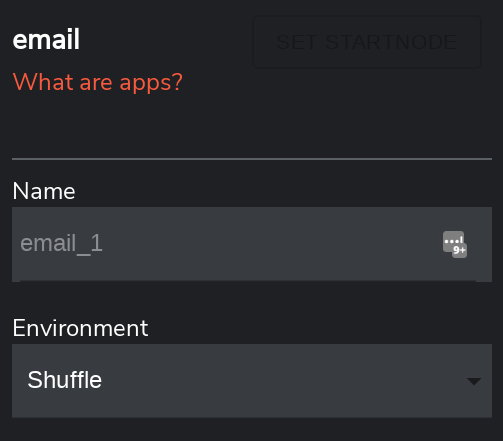
-
Find out what environment your action(s) are running under by clicking the App and seeing "Environment" dropdown. In this case (and default) is "Shuffle". Environments can be specified / changed under the path /admin
-
Check if the workflow executed at all by finding the execution line in the shuffle-backend container. Take note that it mentions environment "Shuffle", as found in the previous step.
docker logs -f shuffle-backend
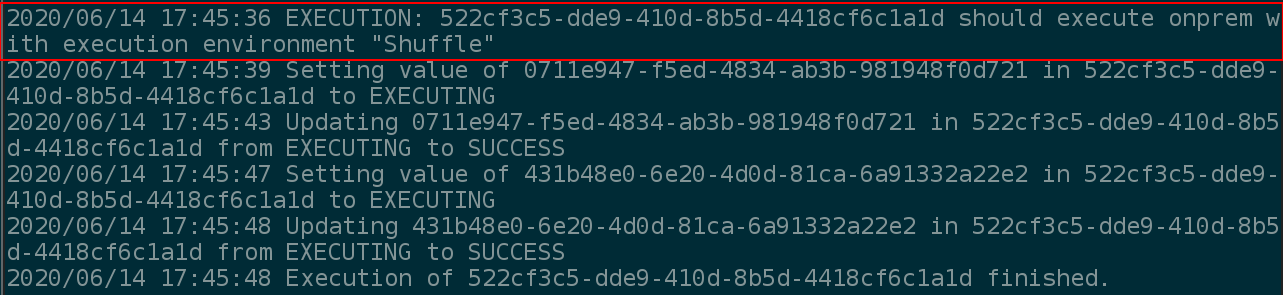
- If it executed, check whether Orborus is running, before checking it's logs for "Container <container_id> is created. The container_id is the worker it has deployed. Take not of the environment again at the end of the line. If you don't see this line, it's most likely because it's running in the wrong environment.
Check if shuffle-orborus is running
docker ps # Check if shuffle-orborus is running
Find whether it was deployed or not
docker logs -f shuffle-orborus # Get logs from shuffle-orborus

Check environment of running shuffle-orborus container.
docker inspect shuffle-orborus | grep -i "ENV"
Expected env result where "Shuffle" corresponds to the environment

- Check whether the worker executed your app. Remember that we found <container_id> previously by checking the logs of shuffle-orborus? Now we need that one. Workers are and will always be verbose, specifically for the reason of potential debugging.
Find logs from a docker container
docker logs -f CONTAINER_ID
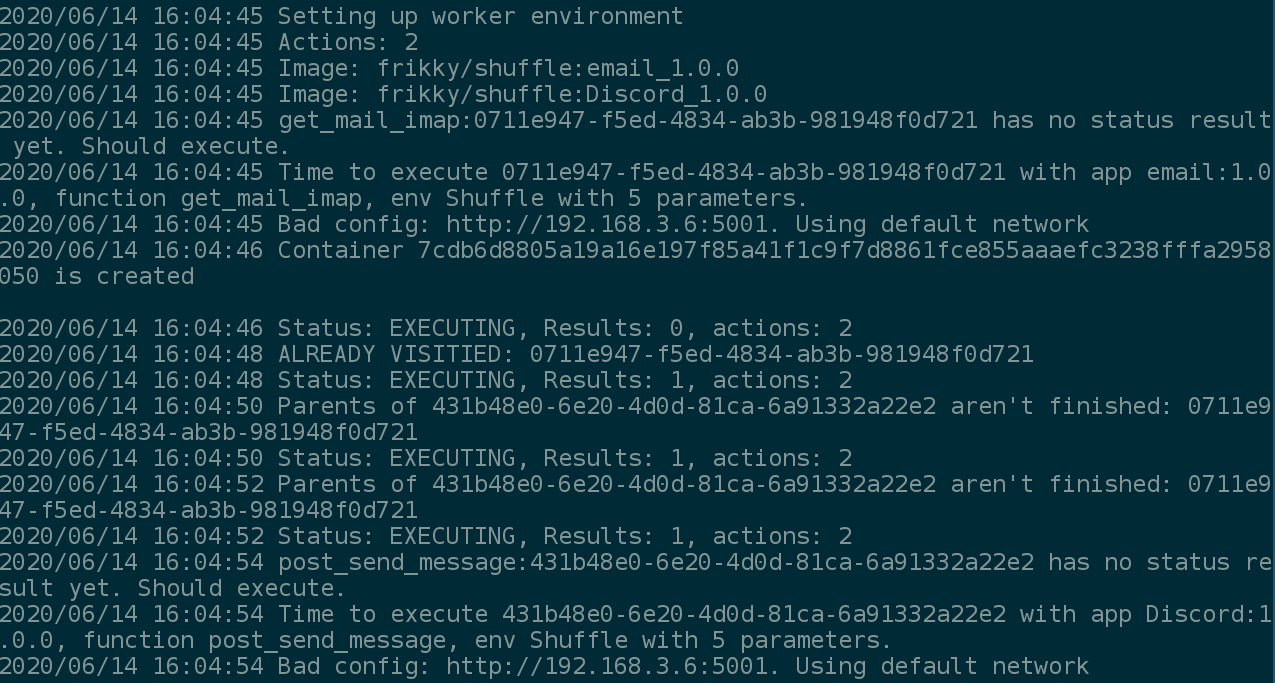
As can be seen in the image above, is shows the exact execution order it takes. It starts by finding the parents, before executing the child process after it's finished. Take note of the specific apps being executed as well. It says "Time to execute <app_id> with app <app_name:app_version>. This indicates the app THAT WILL be executed. The following lines saying "Container <container_id> is the container created with this app.
- App debugging in itself might be the trickiest. There are a lot of factors like branches, bad workflow building etc that might come into play. This builds on the same concept as the worker, where you pass the container ID it specified.
Get the app logs
docker logs -f CONTAINER_ID # The CONTAINER_ID found in the previous worker logs
As you will notice, app logs can be quite verbose (optional in a later build). In essence, if you see "RUNNING NORMAL EXECUTION" in the end, there's a 99.9% chance that it worked, otherwise some issue might have occurred.
Please notify me if you need help debugging app executions ASAP, as I've done a lot of it, but it's more tricky than the other steps.
FAQ
Q:  What is multiline? how is that represented when filling out the values?
A: Multiline means the field will be larger and easier to use in the UI. E.g. you can use newlines.
Q:  Are there different schema types other than string?
A: The only schema type is currently string, but we'll migrate to at least have number, list, bool and object later. You can put whatever there - it's not used.
Q:  How do the options function? does defining it automatically prevent user input? or can there be both?
A: The first option is always chosen (at least that's the point). Make an empty entry if it should be blank by default
Q:  Would it be possible to alter the yaml format to be able to group actions into sections? this could also provide a way to section stuff in the UI presentation so it's not one giant list of actions
A: Yep, categorization will come. Not possible right now, but if you add a field like "category" to each action, we could incorporate that right away in the backend
Q:  What are the possible return schema types?
A: Return schema: You can return it pretty much however you want and we'll make it into a string. Follows same as #2: We'll start using specific casting later
Q:  What's the difference in using the UI app + action creation process vs manually creating the files?
A: UI App creator can only make Rest API's with specific actions. It generates the python code and api.yaml in the backend / docker image
Q:  In app creation UI, what's a query?
A: Query = parameter = whatever is at the end of urls after ?: https://shuffler.io/?query=this
Q:  In app creation UI, what are the extra configuration items used for? examples? also, middle input box has example text cut off partway through.
A: Extra config was added recently (last 2 weeks) and was added to make it possible to e.g. add headers to all actions at once, as well as extra "required" parameters. It's not finished - this is just the start stage. If you add a name in there, it will be required to fill out as authentication mechanism from the user
Q:  In app creation UI, in the "New action" popup, what are queries?
A: Fixed the links for new releases! The documentation is generally not very good for the app creator yet (lots todo here: https://github.com/frikky/shuffle-docs/issues)
Q:  How does Shuffle handle refresh tokens?
A: We don't yet (June 2021). The best way around this is to refresh every time.