Search
Ctrl+K
Triggers


On this page
[!IMPORTANT] See Workflow Documentation: Triggers for the actively maintained documentation. Triggers have been consolidated into the Workflows guide.
Documentation for triggers, running workflow executions
Introduction
Triggers are the operators used to execute a workflow automatically. They are connected to a actions within workflows - often the starting node. Triggers usually take an execution argument that will be used to execute the workflow in question.
About
Triggers, along side apps and variables, can be found on the left hand side, in a tab called "Triggers".

Triggers are developed by Shuffle specifically to give the user access to multiple ways to run a workflow. The triggers that are not available on-premises are due to access requirements - not hiding of features.
There are currently four triggers, with a fifth "hidden" one:
- Webhook - Handle realtime HTTP requests from anywhere.
- Schedule - Runs your workflow on a schedule. Cronjob or seconds.
- User Input - Waits for user input before continuing. You can answer yes/no.
- Subflow - Allows running of another workflow from the current workflow.
- Email - When you get an email in gmail/office365: start the workflow
- Rest API - Essentially a trigger from either: 1. Another workflow. 2. Any third party software
There are currently six ways to execute workflows:
- Cloud & Hybrid (paid): Webhook, Subflow, User Input, Schedule, Outlook, Gmail, Rest API
- Onprem: Webhook, Subflow, User Input, Schedule, Rest API
Hybrid
ALL triggers are available EVERYWHERE if you have a Shuffle subscription. This further allows routing executions through cloud (without saving any data) to your open source instance, without the need to open for inbound requests in your firewall(s).
Example: Say you want to get messages from a service like a SIEM, but it's in a different data center. How do you get that request all the way to your instance? This can be done by setting up cloud synchronization allowing for:
- Remote SIEM -> Send Webhook to https://shuffler.io as a "proxy"
- Your local instance looks for jobs from an tenant you own on https://shuffler.io
- When a webhook job is found on https://shuffler.io - it will execute in your local instance.
Read more about cloud synchronization in the tenant documentation.
Finding executions
When a trigger runs, you will NOT be notified about it anywhere. It will instead run behind the scenes. You can however discover their data and executions by going to the specific workflow's UI, then clicking "See all executions" on the bottom (the running person).
Webhook
Webhooks are the real-time handler for Shuffle data. Webhooks were initially implemented to handle data from Office365 connectors and TheHive, but have turned into a generic trigger, taking any kind of HTTP data, as we saw the need for it.
HTTP Method(s):
- GET
- POST
PS: Data in the POST request will be the execution argument. If HTTP queries are present in the GET request, these will be converted to JSON.
Authentication
In later versions of Shuffle, you further have access to an authentication field. This field is based on the headers of the request, and any header added to this field will be REQUIRED from the sender of the webhook.
One header for each line. In the image below, the request would need to contain the headers "authorization" and "authorization2" with the exact values specified.
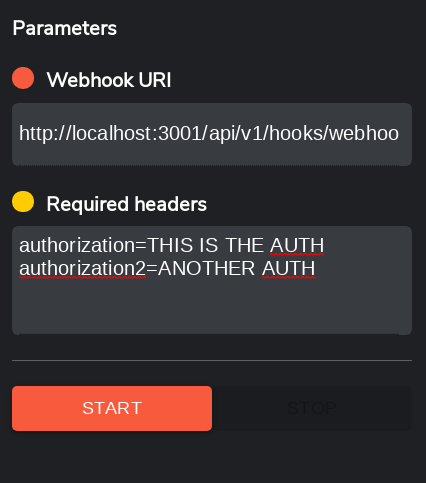
Webhook Example
To start using webhooks, you should have a service that supports webhooks (e.g. the two above mentioned). If you just want to test, you can also use cron.
Once you have a service ready:
- Drag the "Webhook" trigger from the left hand side into the main view, and you should see it automatically connect to your starting node.
- Click "start" to deploy this webhook (it might be auto-started). This will also be stopped if you remove the node or the workflow. A webhook can not be in multiple workflows, but you can deploy as many as you want.
- Find your webhook URI in the "Webhook URI" window, and copy it to your service
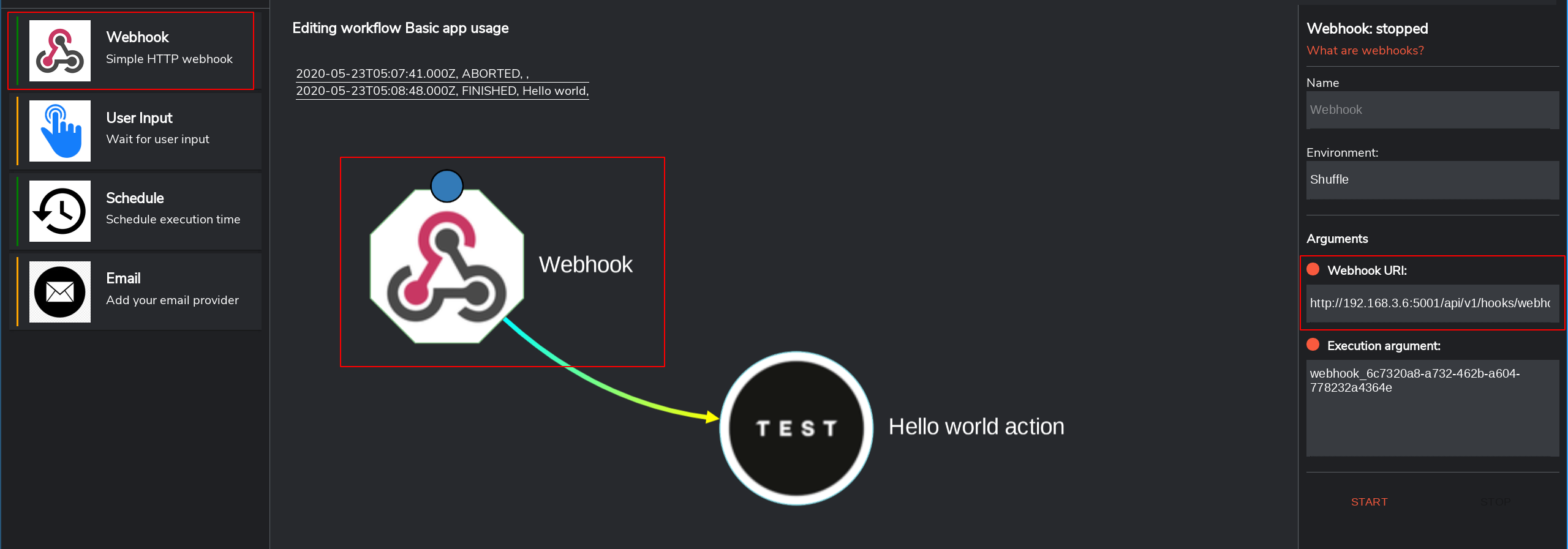
Test it! Say your URI is: https://shuffler.io/api/v1/webhooks/webhook_336a7aa2-e785-47cc-85f4-31a4ab5b28b8 and you want to use {"test": "testing"} in your workflow:
API Call
curl -X POST 'https://uk.shuffle.security/api/v1/webhooks/webhook_336a7aa2-e785-47cc-85f4-31a4ab5b28b8' \
  -d '{
  "test": "testing"
}'
Response
No response received.
Subflow
Subflows is a trigger made to run workflows within other workflows. There's further a "parent/child" element to it where there's always a reference to where the execution came from. This can also run a subflow within itself or be recursive (infinite loops).
Purposes we'll cover:
- Create standard workflows that can be used within other workflows. E.g. checking an IoC in a standardized way every time.
- Handle loops well. This is to avoid multiple nested for-loops and instead make a new workflow to handle it. E.g. list of emails with list of attachments with list of sub-attachments (e.g. Zip).
Requirements:
- shuffle-subflow app. This is automatically installed.
Here are the known missing features for subflows
Extra subflow information
- Subflows can be in the same Workflow. When selecting, it will show up as red.
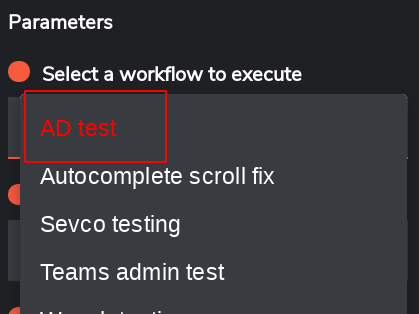
- Parent nodes of the subflow trigger show up as red. When using these, make sure you stop the workflow. We will add a warning for this, as it can run you out of resources easily.
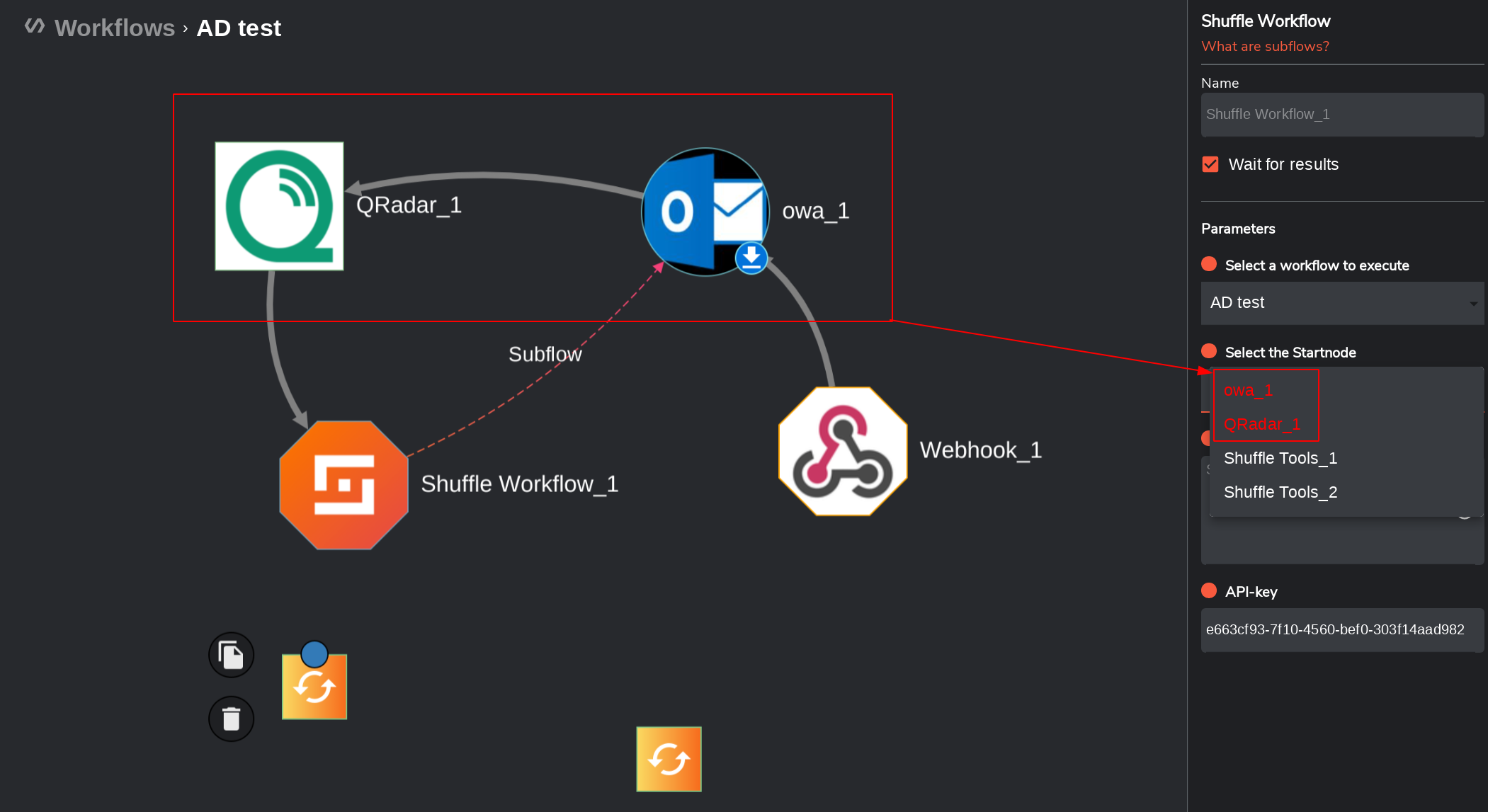
- After choosing a subflow - if you right-click the subflow node in the workflow UI, it will import the subflow. When saving, this will NOT be a part of the workflow.
- PS: We will make this part of the workflow visual and non-interactive at a later stage.
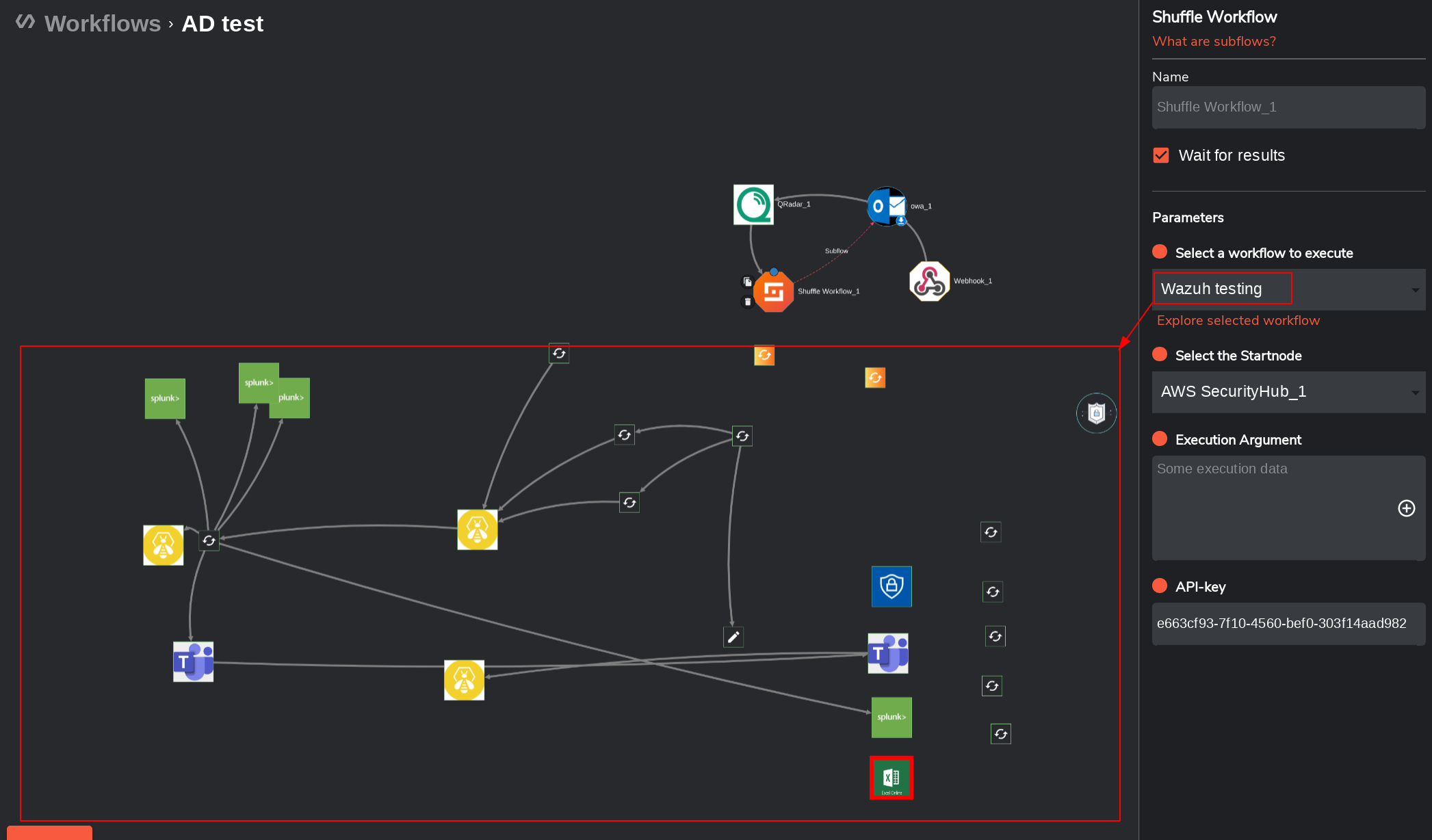
Subflow Example
-
Drag a subflow into the PARENT view from the left side and click it
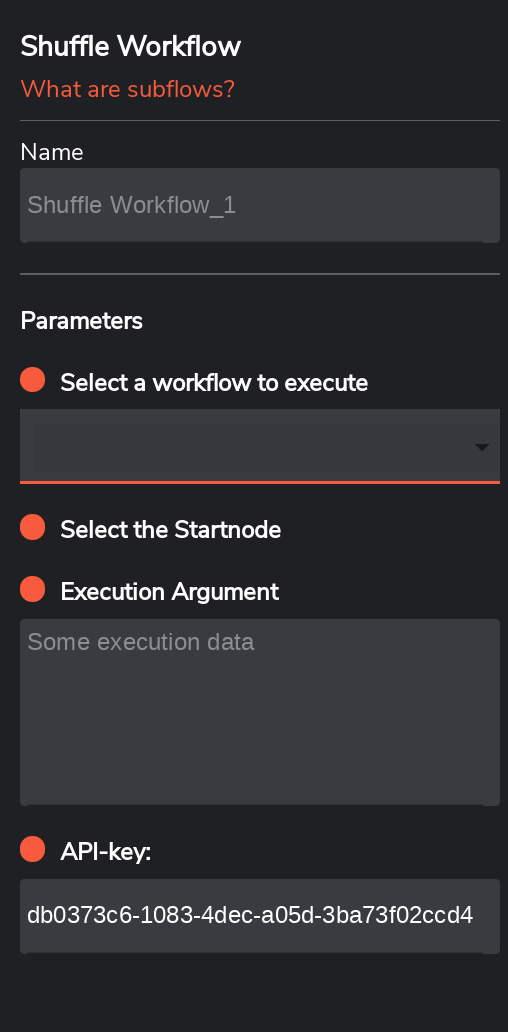
-
Choose a workflow to run. This will use the STARTNODE as default, which can be changed. The red workflow is the one you're currently working on.
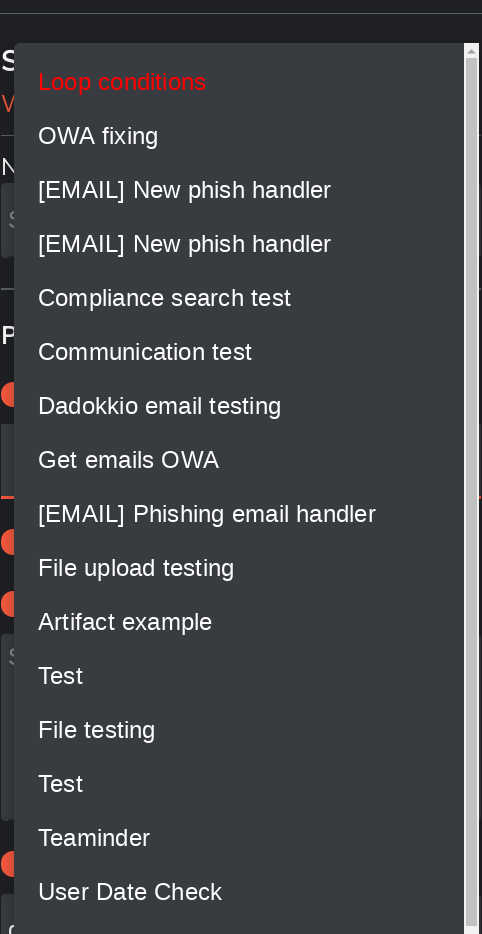
-
We'll decide a startnode and the information to send to the subflow. In our case, we'll use the list below, and send one item at a time with the IP to be searched for in Virustotal. The data with the list is named Repeat_list in our case, hence we use $Repeat_list.#
[{"ip": "1.2.3.4", "malicious": true}, {"ip": "4.3.2.1", "malicious": false}, {"ip": "1.2.3.5", "malicious": true}]
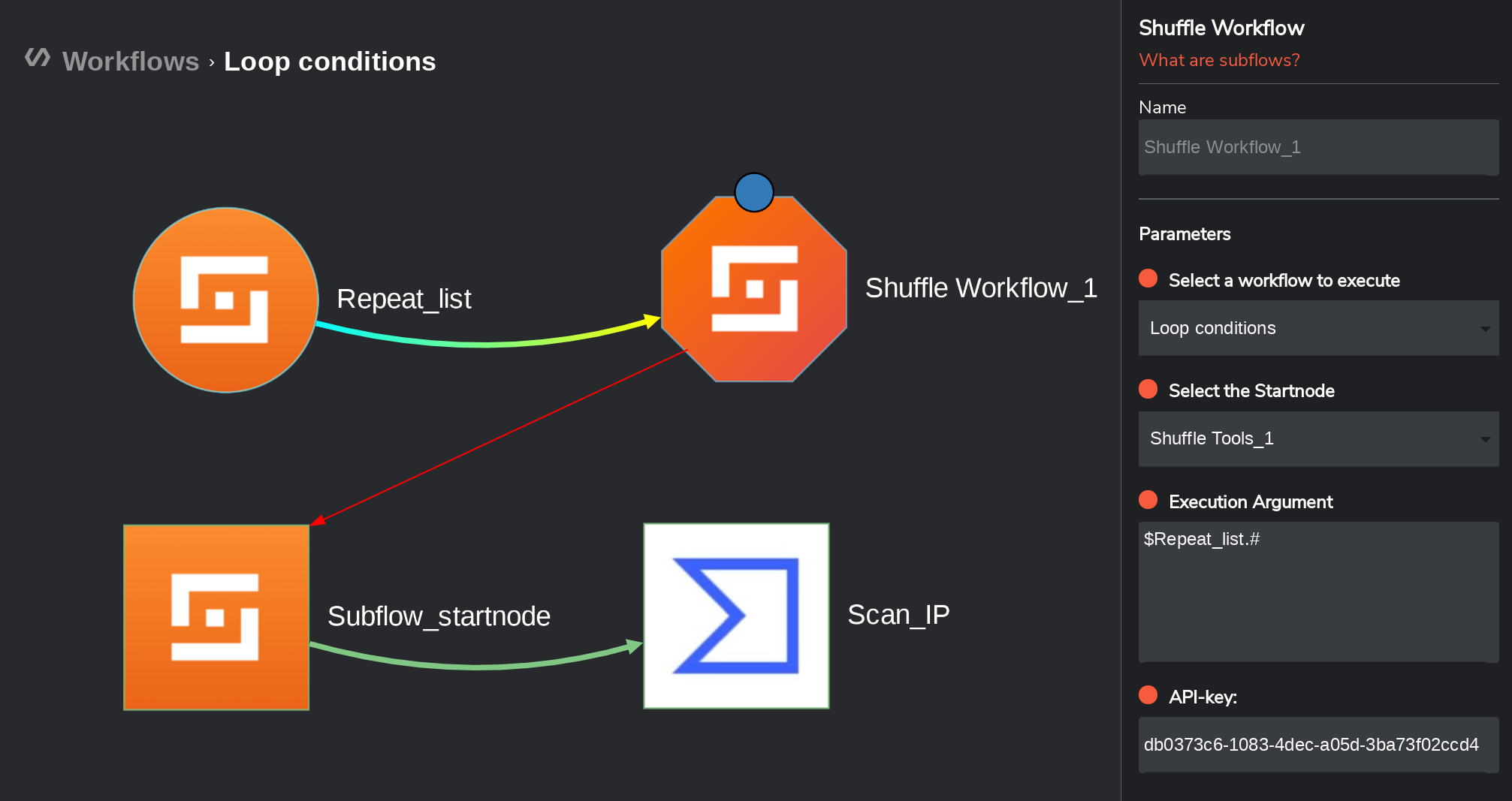
-
It's time we explore the results. In total, this should execute FOUR times: 1 for the first workflow and once for EACH of the objects in the list.
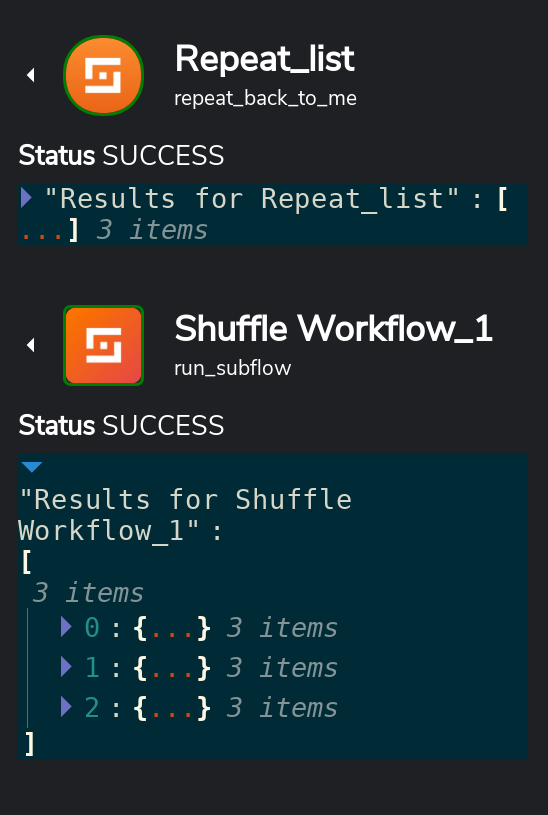
-
Here's a view of the total workflows. Notice how three of them are marked as subflows. PS: It will always show the maximum amount of nodes in the workflow, whether it's a subflow or not.
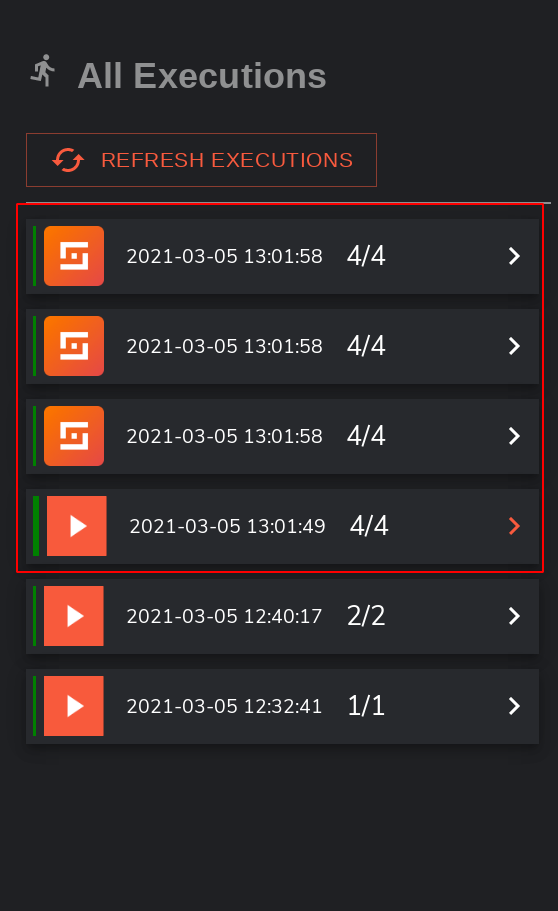
-
Exploring the subflows, we find that the IP's have been searched for in Virustotal, and that we have a reference to the parent. Clicking the reference will take you to the parent execution.
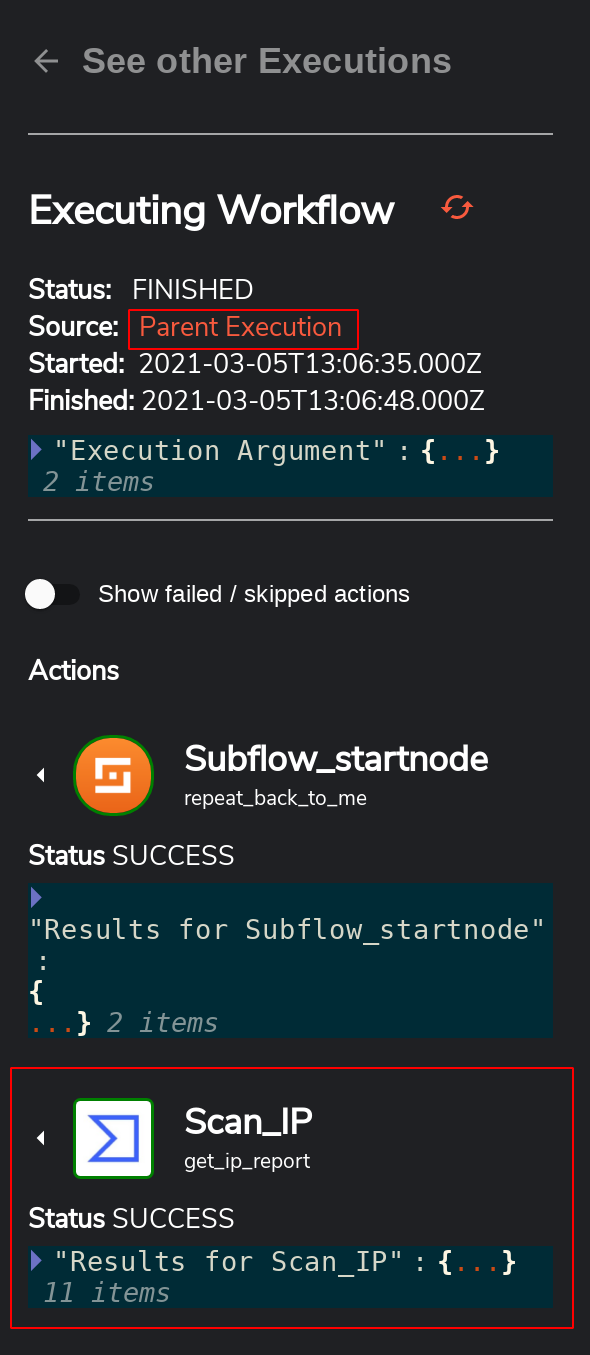
Schedule
On-prem Schedules on-prem are ran on the webserver itself. Rather than cron, it uses a scheduler that runs it every X seconds. This will become more sophisticated over time. Schedules persists in the database even when you turn off Shuffle, so don't be afraid to update.
Cloud Schedules are based on google's cloud scheduler and are schedules that run based on cron. It takes two arguments - the schedule you want to run it on and the Execution argument used in the workflow. A simple cron converter can be found here. When you are ready to run, click "start".
Schedule Example
- Drag a schedule into the view from the left side
- Click the schedule
- Type in the amount of seconds between execution (down to every 1 second)
- Type the execution argument you want to execute with. This can be used by actions.
- Click "Start"
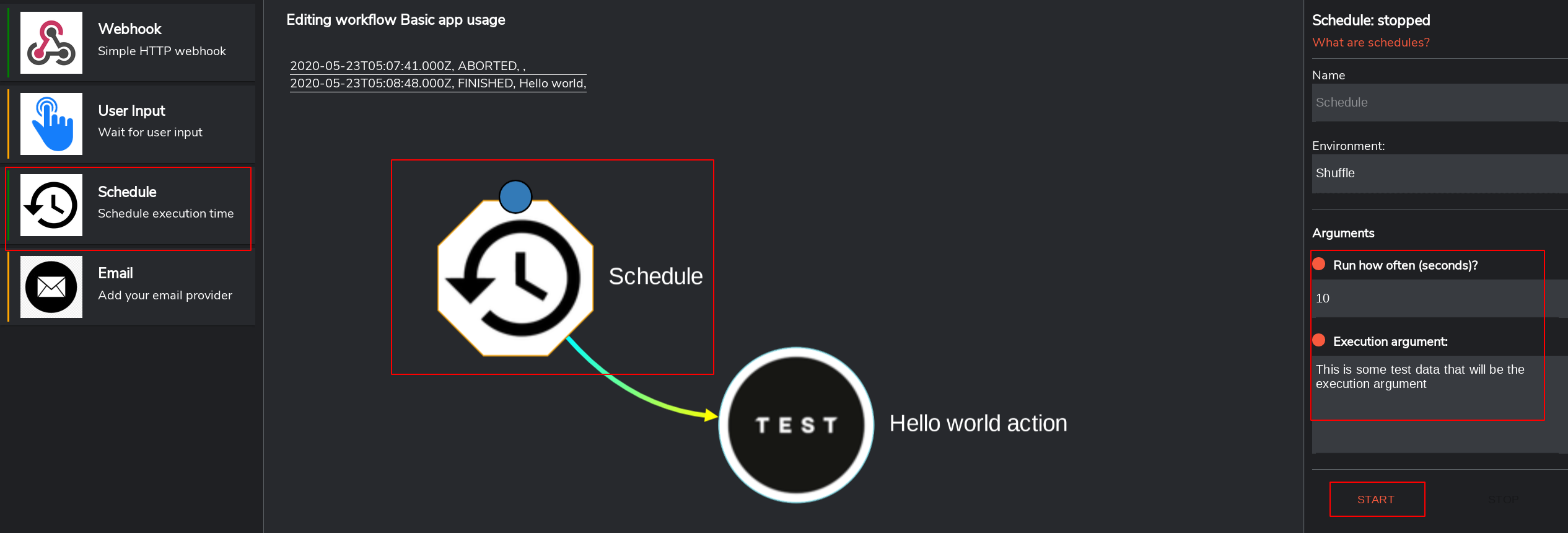
User input
-
User Input is an app located within triggers. It provides a method to temporarily pause ongoing executions in a workflow, awaiting approval or denial from a human through a manual click before proceeding with or stopping subsequent executions.
-
This can currently be achieved through Subflows (preferred for production), Email and SMS for rapid testing on the fly, but we will introduce many other options, including chat systems.
-
Note: If you have any suggestions pertaining to this, please let us know via a feature request on github.
-
The point of the user input node is that it acts as a crucial control point, allowing human oversight and decision-making within automated processes. e.g.
-
Scenario 1: Granting or revoking user access privileges. User Input: Authorization from appropriate personnel before modifying user roles or permissions.
-
Scenario 2: Rolling out software updates across a network. User Input: Approval from IT administrators before deploying updates to servers or critical systems.
-
Scenario 3: Investigating and responding to security incidents. User Input: Analyst decision for remediation actions, such as isolating a compromised system or blocking a suspicious IP address.
User Input Example
-
In the bottom left corner select the triggers tab
-
Drag in the user input node into your workflow
-
Set it up where you will want approval before proceeding with subsequent nodes in the workflow.
- Select Subflow as the input option (This is always preferred). You can use email and sms to rapidly test on the fly.
-
Set up your "trigger workflow" in my example it is the workflow labeled "UI test trigger" and select it in your user input node settings (as shown above). We will use this workflow to further customize our user input making how to use it limitless. (This is why this method is preferred). The example below shows how versatile it can be
-
When we execute our workflow then jump into our "UI test trigger" workflow (This is our "trigger workflow"), we should get an execution argument as follows.
- Using the execution argument provided, we can then send a well structured request to a user asking for the approval or denial before an event takes place.
-
Which appears as shown below in a users email inbox requesting for the users input. Remember this action can be sent to whatever communication channel you use. It can also be sent to multiple users but can only be triggered once for now. (We may add multiple users approval for this in the future)
-
Frontend_continue and frontend_abort should open a new tab with a shuffle UI prompting you to either click on proceed or abort.
-
API_continue and API_abort this opens a new tab informing you if the operation you selected was a success or not. As shown below
- The Workflow run debugger is a new feature implemented in shuffle V 1.3.0 that helps you dig through and audit the performance of workflows, the errors encountered, logs and the current status of executions in your workflows. Found here
- With that said, you can use the Workflow run debugger to check whether or not the approval was granted and on which workflow was the request sent and on which workflow is a response expected, if the actions of the workflow are finished or whether or not we are still waiting for the user input. Think of this as a way to audit status of executions and workflows.
- Using this you can see if the action was completed or not under the status tab marked as 1 above and the workflow name right besides it.
- If you hover above the start times for the executions you should see pop up info with regards to what the error is, errored out workflows start times are usually highlighted in red as shown in the image above
- In label 3 as shown in the image a pop out takes you to the target workflow directly and 4 shows you the logs.
Pipelines
A pipeline is a sequence of interconnected steps or stages that take input data, transform it through various operations, and produce an output. The data enters the pipeline at one end, undergoes transformations at each stage, and emerges as a refined output at the other end.
How Pipelines Work
Components of a Pipeline:
Source:
- Definition: The origin point where raw data is introduced into the pipeline.
- Examples: Databases, APIs, log files, webhooks, etc.
- Function: Captures and provides raw data for processing.
Ingestion:
- Definition: The process of extracting and importing data from the source into the pipeline.
- Function: Ensures data is pulled into the pipeline efficiently and accurately.
Transformation:
- Definition: The stage where data undergoes various modifications to prepare it for the next steps or final use.
- Operations:
- Filtering: Selecting relevant data based on specific criteria to ensure only necessary information is processed.
- Format Conversion: Changing data types or structures to ensure compatibility with the target system or further processing stages.
Sink (Destination):
- Definition: The endpoint where the transformed data is stored or delivered.
- Examples: Databases, analytics systems, other applications.
- Function: Stores or utilizes the processed data for analysis, reporting, or further action.
How Shuffle Uses Pipelines
In Shuffle, we are currently using Tenzir data pipelines.
Pipeline Trigger Features
-
Syslog Listener: Used to ingest logs into the pipeline.
-
Sigma Support: Pipelines support Sigma rules, which allow us to define and customize detection rules. This gives Shuffle the ability to control what to detect and the rules governing these detections. Whenever logs match the Sigma rules, a workflow run is triggered in Shuffle.
-
Kafka Forwarder: Configures the pipeline to actively forward all messages from a specified topic to your workflow.
Additional features will be added in the future.
Setting Up Sigma Rules for Detection
To start using pipelines for detection, you need to set up or download Sigma rules. This can be done by:
- Visiting the Sigma page: https://shuffler.io/detections/sigma
- This will automatically download all the Sigma rules from a remote GitHub repository into the Tenzir node, making the pipeline ready for detection.
Managing the Sigma Rules
To view and manage the downloaded Sigma rules:
- Visit the Sigma page: https://shuffler.io/detections/sigma
- To edit an existing rule, click the Edit button, make your changes, and save.
- You can disable or enable a particular rule file or globally enable or disable the rules.
Pipeline Example
-
Drag the "pipeline" trigger from the left-hand side into the main view, and it should automatically connect to your starting node.
-
To start the syslog listener, click on the syslog listener. This will start the listener at 192.168.1.100:5162 on your host machine. You can connect to this endpoint via the TCP protocol and send your syslog data.
-
For running detection rules, click on the Sigma rule search option. This will create a pipeline that takes the ingested logs and applies the Sigma rules that are downloaded and enabled. Whenever logs match the defined rules, the detected logs are sent, triggering the workflow run.
-
For forwarding Kafka messages from a topic, click on the "follow Kafka queue" option. You will see a pop-up asking for Kafka-specific information that you need to provide, such as the topic name and bootstrap server address. Once you provide the required details, click submit and start. This will actively forward all incoming messages from your Kafka topic to the workflow.
- To stop a pipeline, simply click on the stop button. This will stop the pipeline and its execution. If you want to delete the pipeline, you can delete the pipeline trigger from the workflow.
Manual Sigma forwarding
The reason manual forwarding may be necessary is e.g. if Shuffle doesn't have access to the location you are trying to reach. This makes Shuffle unable to handle rules dynamically, but allows for customization nonetheless.
- Make sure you have a folder with the rules on the server you want to run detections on. Put them in the folder
/var/lib/tenzir/sigma_rules - Set up a sample workflow with a Webhook as the trigger in Shuffle.
- Start the following Pipeline in Tenzir.
export | sigma /var/lib/tenzir/sigma_rules | to <webhook url>
- Check in Shuffle if any executions occurred
Email triggers no longer exist, and should be handled with Email schedules instead: Gmail, Outlook